Real stores, inside your assistant.
Storewire’s MCP server connects Claude, ChatGPT, Codex and Cursor to the pages, popups, emails, price cuts and A/B tests of DTC stores, captured every day. One address, one sign-in.
Works in ClaudeChatGPTCodexClaude CodeCursor
It answers from what it saw.
Storewire visits stores every morning and keeps what it sees. Your assistant answers from that record, not from memory.
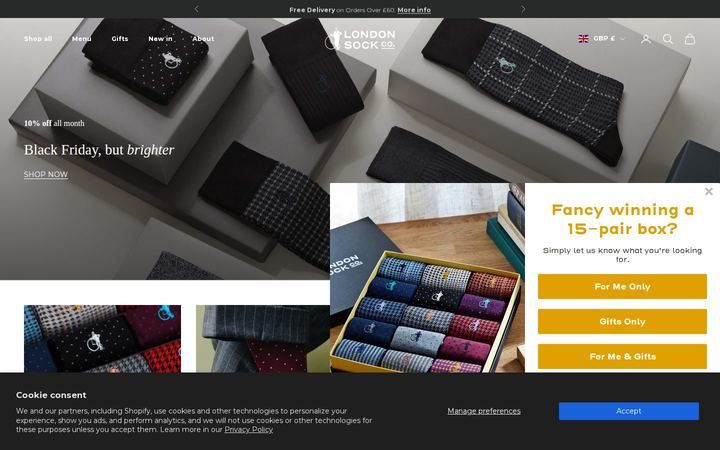
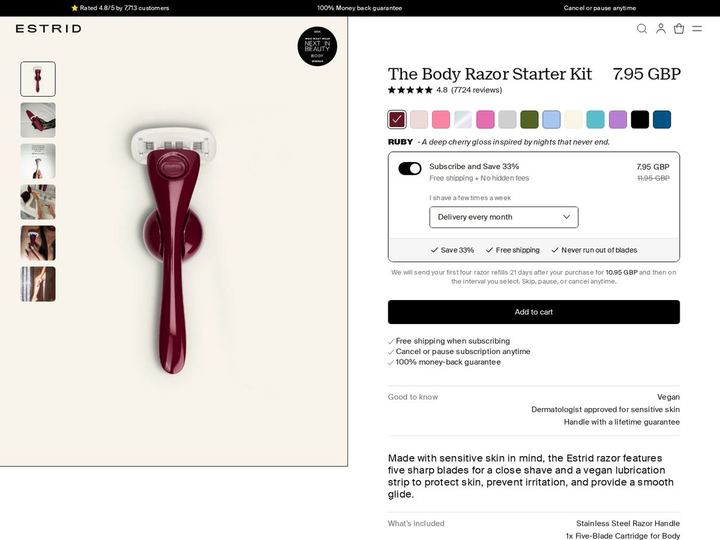

Captured from live stores.
Every example is a capture of a live store, with the store and the date it was seen.
Kept from the first check.
Yesterday’s homepage, last month’s popup, both versions of a test.
It already knows your store.
What you sell, how you look and sound, and what you never do. Set once, there in every assistant.
One address, one sign-in
Paste the address and sign in through your browser. Most assistants need nothing else.
It changes things only when you ask
Most tools only read. Following a store, saving an example or switching your morning email waits for your say.
What you ask stays yours
Storewire records which tool ran, never what you asked or what came back. Disconnect in Settings and it stops at once.
What your assistant can see, with and without Storewire.
Storewire isn’t another assistant. It works inside the ones you use, and gives them a record of DTC stores they can’t build on their own.
| What it can do | Storewire | Claude | ChatGPT | Perplexity |
|---|---|---|---|---|
| What stores are doing | ||||
| Real store pages, picturedHomepages, product pages and their sections, on desktop and mobile. | ||||
| Popups new visitors seeCaptured as a first-time visitor, with the offer read off the popup. | ||||
| A dated record of every changeLaunches, sales, price moves and page changes, since Storewire started checking. | ||||
| Price cuts and promotionsWhen stores in your category cut prices, how deep and for how long. | ||||
| A/B testsTests at the brands you follow, with both versions pictured. | ||||
| Emails after sign-upWhat a store sends once it has an address, and whether it gave what the popup promised. | ||||
| What’s normal in your categoryHow many stores show reviews on a product page, or a countdown in a popup, now and four weeks ago. | ||||
| Working with it | ||||
| A morning emailThe few changes that matter at the brands you follow, every morning. | ||||
| Your brand rules, in every assistantYour store, its look, its voice and what it never does, shared by Claude, ChatGPT, Codex and Cursor. | ||||
| What your assistant already does | ||||
| Searching the open webNews, reviews and anything else that’s written down somewhere. | ||||
| Writing, reasoning and codeDrafting the popup, arguing the plan, building the section. | ||||
- Yes
- Partly: one store at a time, as it is today, or without real examples
- No
The assistant you already use, with a record of the market.
Each one is good at its job. None of them was there yesterday to see what changed.
Claude
A careful writer and reasoner, working from today’s page.
Claude can open a store and tell you what it shows. It can’t tell you what was there last week, which popup a new visitor sees, or what the store is testing.
Connect Storewire and Claude answers from every check since Storewire started, and builds to your brand rules.
ChatGPT
It can browse. It has nothing to compare against.
Ask ChatGPT what the brands you follow changed this week and it has to guess, because nobody kept last week’s pages.
With Storewire, it answers from this morning’s check, with dates and pictures of each change.
Perplexity
Fast at what’s written about a brand. Stores don’t write down their changes.
News, funding and reviews are on the open web. A store’s old homepage, last month’s popup and the losing side of a test are not. Once they’re gone, they’re gone.
Storewire keeps them. It works in Claude, ChatGPT, Codex and Cursor.
Use Storewire MCP for
seeing what changed
What the brands you follow changed, launched, discounted and tested, with the date of each.
Use Storewire to show what changed at the brands I follow this week.
planning a sale
When stores in your category cut prices, how deep and for how long, read from their product feeds.
Use Storewire: how are coffee brands approaching Black Friday so far?
designing from real stores
Heroes, buy boxes, popups and whole pages from live stores, on desktop and mobile.
Use Storewire to show me product pages that sell subscriptions well.
briefing to your brand
Your assistant reads your store first, then judges its work against your look, your voice and your rules.
Use Storewire to brief a Black Friday popup for my store.
reading their emails
Welcome flows, sale emails and what a store gives new subscribers, from Storewire’s own sign-ups.
Use Storewire: what do coffee brands give new subscribers?
checking what’s being tested
A/B tests at the brands you follow, with both versions. Storewire never says which won: nobody outside the store can know.
Use Storewire: what are the brands I follow testing right now?
Connect it in a few steps.
Pick your assistant. You’ll need a Storewire account, because connecting asks you to sign in.
https://app.storewire.ai/mcpConnect Storewire to Claude
On claude.ai and in the Claude desktop and mobile apps. Add it once on the web or desktop and it’s there on your phone too.
- In Claude, open Settings → Connectors and choose Add custom connector.
- Name it Storewire, paste
https://app.storewire.ai/mcpas the address, and add it. - Choose Connect. A Storewire page opens. If you aren’t signed in there, Storewire emails you a sign-in link: open it in the same browser and you’ll come back to the same page.
- Check the page names Claude, then choose Allow. You’re sent back to Claude.
- In a chat, open the tools menu and make sure Storewire is switched on.
To check it worked, ask: Use Storewire to show me email sign-up popups from real stores.
On a Team or Enterprise plan, an owner may need to add the connector for the organisation before you can connect it.
Connect Storewire to ChatGPT
On chatgpt.com and in the ChatGPT apps. Custom apps depend on your plan, and on a Business or Enterprise workspace an admin may need to allow them.
- Open chatgpt.com/plugins, choose +, then Add custom MCP server.
- Name it Storewire and paste
https://app.storewire.ai/mcpas the server address. - For authentication choose OAuth. ChatGPT finds Storewire’s sign-in by itself, so leave the client ID and secret empty.
- Confirm the warning, create it, and sign in on the Storewire page that opens. Check it names ChatGPT, then choose Allow.
- In a new chat, type @ and pick Storewire, or just ask and name it.
To check it worked, ask: Use Storewire to show me email sign-up popups from real stores.
If your ChatGPT has no option to add a server there, turn on developer mode in ChatGPT’s settings (under Apps, then Advanced settings) and add Storewire with the same address and OAuth.
Connect Storewire to Codex
In the Codex CLI, the IDE extension and the desktop app, which share one setup. Codex signs in through your browser.
- Add the server:
codex mcp add storewire --url https://app.storewire.ai/mcp - Sign in:
A Storewire page opens in your browser. Check it names Codex, then choose Allow. On a machine without a browser, addcodex mcp login storewire--no-browser, open the address it prints, and paste back the address you land on. - Start Codex and type
/mcpto check Storewire is listed.
To check it worked, ask: Use Storewire to show me email sign-up popups from real stores.
To use a token instead, for CI or a shared machine: make one in Settings → AI assistants, put it in an environment variable, and add this to ~/.codex/config.toml:
[mcp_servers.storewire]
url = "https://app.storewire.ai/mcp"
bearer_token_env_var = "STOREWIRE_TOKEN"
Connect Storewire to Claude Code
In the terminal or your editor. Claude Code signs in through your browser.
- Add the server, for every project:
claude mcp add --transport http --scope user storewire https://app.storewire.ai/mcp - Start Claude Code, type
/mcp, choose Storewire and then Authenticate. Check the Storewire page names Claude Code, then choose Allow.
To check it worked, ask: Use Storewire to show me email sign-up popups from real stores.
To use a token instead, make one in Settings → AI assistants and add --header "Authorization: Bearer YOUR_TOKEN" to the command.
Connect Storewire to another assistant
Any assistant that can add a remote MCP server over HTTP (Cursor, VS Code and others). Most sign in like the ones above; if one can’t, give it a token in the Authorization header.
- Make a token in Settings → AI assistants.
- Add a server with the address and the header. Many apps take settings shaped like this:
{
  "mcpServers": {
    "storewire": {
      "url": "https://app.storewire.ai/mcp",
      "headers": { "Authorization": "Bearer YOUR_TOKEN" }
    }
  }
}
To check it worked, ask: Use Storewire to show me email sign-up popups from real stores.
Make one token per app, so you can revoke one without breaking the others.
What your assistant can use.
You ask in plain English and your assistant picks the tools. Most only read. The few that change your account say so.
The library6 tools
Real store pages, sections and popups, captured from live DTC stores, and the words on them.
The brands you follow5 tools
What the stores you follow changed, tested and discounted, read each morning.
Emails4 tools
The marketing emails stores send after Storewire signs up to them.
Your store and account10 tools
Your own store, who you follow, what you save, and your morning email.
What it doesn’t do.
Online stores only
Storewire follows DTC and ecommerce stores that sell products. Not apps, SaaS or B2B sites.
History from the first check
It keeps what it has seen since it started checking a store. It can’t go back to before that.
Public pages, politely
It reads what any visitor can see, follows each store’s robots.txt and never logs in to a store.
Before you connect.
- What is the Storewire MCP server?
- A remote MCP server at
https://app.storewire.ai/mcp. MCP is an open standard that lets an assistant use outside data. With Storewire connected, your assistant answers from real store pages, popups, emails, price cuts and A/B tests instead of guessing. - Which assistants does it work with?
- Claude, ChatGPT, Codex and Claude Code each have steps above. Cursor, VS Code and any other assistant that takes a remote MCP server over HTTP connect with a token.
- What do I need?
- A Storewire account. Your assistant signs in as you, so it sees the brands you follow, what you’ve saved and your own store, and nobody else’s.
- Is the data live?
- No. Storewire visits each store every morning and keeps what it sees, so every result is a capture. Your assistant gives the store and the date for each one.
- Can my assistant change anything?
- Only when you ask: following or unfollowing a store, saving an example, setting your store’s details, or turning the morning email on or off. It can’t see your tokens or anyone else’s account.
- What does Storewire record?
- Which tool ran, which assistant used it, whether it found anything and how long it took. Never what you asked or what came back. Privacy and support has the rest.
- Does it work for apps or SaaS?
- No. Storewire is only for online stores that sell products.